
Video Brochure Buttons Guide: Controls, Options & Custom Functions
Choosing the right video brochure button configuration helps create the best balance between user experience, video control, and production cost.
Some applications only require automatic playback when the brochure is opened, while others need buttons for volume adjustment, video selection, or navigation between multiple video sections.
CheerTrend provides customizable video brochure control options, including auto play, physical buttons, and multi-button configurations for different applications. The right configuration also depends on factors such as video brochure screen size and project requirements.
Get a Free Quote + Artwork Template
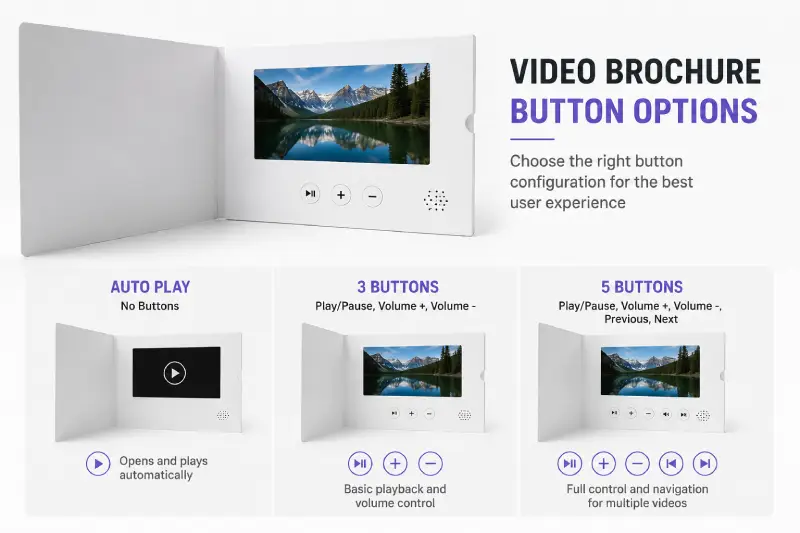
Video Brochure Button Options Explained
Video brochures can be designed with different control layouts depending on the user experience you want to create.
No Buttons: Automatic Playback
A video brochure without buttons starts playing automatically when the cover is opened.
This is the simplest and most common configuration for marketing applications.
Advantages:
- Easy for users to operate
- Lower production cost
- Immediate video playback
Common applications:
- Wedding invitations
- Direct mail campaigns
- Product announcements
- Promotional gifts
3-Button Video Brochure Configuration
A 3-button layout is one of the most common options for business presentations.
Typical functions include:
| Button | Function |
|---|---|
| Play/Pause | Start, pause, or resume video |
| Volume + | Increase volume |
| Volume – | Decrease volume |
This configuration provides basic user control while keeping the design simple.
Recommended for:
- Corporate presentations
- Marketing brochures
- Product demonstrations
Sample orders typically ship within 2 business days.
5-Button Video Brochure Configuration for Multiple Videos
A 5-button video brochure provides more control for projects with multiple videos. Projects with multiple video files should also consider the required video brochure memory capacity.
Typical functions include:
| Button | Function |
|---|---|
| Play/Pause | Control playback |
| Volume + | Increase volume |
| Volume – | Decrease volume |
| Previous | Return to previous video |
| Next | Switch to next video |
This configuration is suitable when users need to navigate between different video files.
Recommended for:
- Sales presentations
- Product catalogs
- Real estate presentations
- Training materials
Auto Play vs Button Control: Which One Should You Choose?
The right control method depends on your application and user experience requirements.
| Feature | Auto Play | Button Control |
|---|---|---|
| Operation | Opens and plays automatically | User controls playback |
| User experience | Simple and direct | More interactive |
| Cost | Lower | Higher |
| Multiple videos | Limited | Better for navigation |
| Best for | Invitations, mailers | Presentations, demonstrations |
For most promotional and invitation projects, auto play is preferred because users can immediately view the content without learning how to operate the device.
Custom Multi-Button Video Brochure Controls
For more complex projects, CheerTrend can customize button layouts based on the application requirements.
Some customers use multiple buttons to allow users to directly select different videos or presentation sections.
Examples:
- Product 1 / Product 2 / Product 3 videos
- Different service introductions
- Company profile sections
- Training chapters
- Real estate property information
12-Button Configuration Example
Button 1 → Product Video A
Button 2 → Product Video B
Button 3 → Product Video C
…
Button 12 → Company Information
A custom video brochure can support more complex button layouts depending on the product structure and PCB design.
How Many Buttons Can a Video Brochure Have?
The number of buttons depends on the application requirements, video structure, and user interaction needs.
Common video brochure button configurations include:
– No buttons: Automatic playback when the brochure is opened
– 3 buttons: Play/Pause with volume control for simple presentations
– 5 buttons: Play/Pause, Volume +/-, Previous, and Next for multi-video navigation
– Custom multi-button layouts: Designed for projects requiring direct access to different videos or presentation sections
For advanced OEM projects, CheerTrend can support up to 12 customized buttons. Each button can be assigned to a specific video file, product section, or function based on the project requirements.
How Buttons Affect Video Brochure Cost
Adding buttons can affect the final cost because it requires additional:
- PCB design
- Electronic components
- Wiring
- Assembly time
- Testing procedures
Simple configurations such as auto play usually provide the most cost-effective solution.
However, buttons can improve usability and create a more professional presentation experience for business applications.
For a full breakdown of pricing factors including screen size, memory, and printing, see our Video Brochure Cost Guide.
Recommended Button Configuration by Application
| Application | Recommended Control |
|---|---|
| Wedding Invitation | Auto Play |
| Direct Mail Marketing | Auto Play / Play Button |
| Product Launch | Play + Volume |
| Real Estate Presentation | Play + Volume + Next |
| Corporate Presentation | Multiple Buttons |
| Training Material | Navigation Buttons |
Manufacturer Insight: Match the Buttons to How the Brochure Will Actually Be Used
When a customer first contacts us about button options, the request is often the same: as many buttons as possible, so the end user has full control.
In practice, the number of buttons should be decided by one question: who is opening this brochure, and in what setting?
A wedding invitation or a direct mail piece is usually opened once, by someone who has never seen a video brochure before. In that context, every extra button is a decision the recipient has to make before they even see the video. Auto play removes that friction entirely — the video starts the moment the cover opens, with no instructions needed.
A sales or training presentation is different. It’s used repeatedly, often by a trained presenter who needs to jump between sections — company overview, then product demo, then case studies — without restarting the whole sequence. Here, a 5-button or custom multi-button layout isn’t excess complexity; it’s the feature that makes the tool usable in a live meeting.
The mistake we see most often is applying the “more control is more professional” assumption to one-time consumer-facing pieces, where it actually makes the product harder to use. The button count should follow the use case, not the perceived prestige of having more buttons.
Frequently Asked Questions
Not always. Many applications work well with automatic playback when the brochure is opened. Buttons are recommended when users need playback control or video selection.
Yes. Most video brochures can be configured with automatic playback using a magnetic switch or open-cover activation.
The number of buttons depends on the design. Standard options include 1, 3, or 5 buttons, while customized OEM projects can support up to 12 buttons for selecting different videos.
Yes. Additional buttons may increase cost because they require more electronic components, PCB design, and assembly work.
Yes. Button functions can be customized depending on the project requirements, including playback control, volume adjustment, and selecting different videos.
The most common configurations are automatic playback, 3-button control (Play/Pause and Volume), and 5-button navigation layouts.
Need a video brochure with custom buttons or multi-video navigation?
CheerTrend provides OEM/ODM video brochure solutions with customized controls, printing, and video loading support.

Get a Free Quote →