
How to Upload Video to a Video Brochure: Step-by-Step Guide
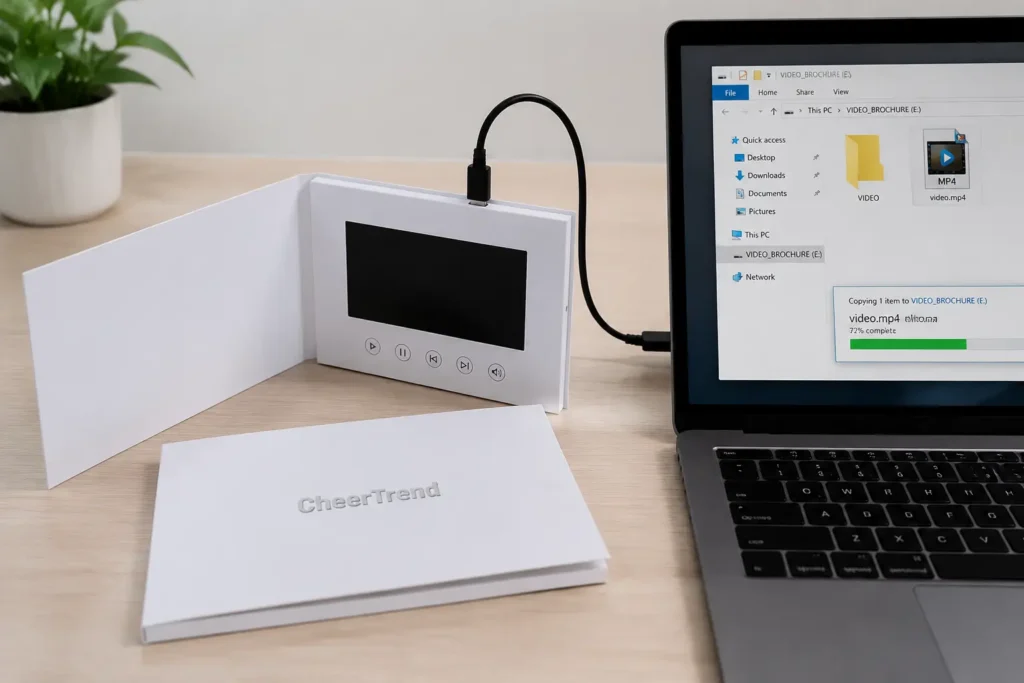
A video brochure allows you to update the video content after delivery by connecting the device to a computer through USB.
Many video brochures support USB connection for updating video content. Depending on the model and configuration, the device may appear as a removable storage drive when connected to a computer.
Before uploading a new video, make sure your file format and resolution match the video brochure specifications for your model.
CheerTrend supports both options:
- Customers can update videos themselves after receiving the products.
- We can preload and test video content before shipment during production.
Get a Free Quote + Artwork Template
What You Need Before Uploading a Video
Before starting, prepare:
| Item | Requirement |
|---|---|
| Video brochure | Fully charged device |
| USB cable | Cable included with the product |
| Computer | Windows or Mac |
| Video file | MP4 recommended |
| Storage space | Enough memory for the new video |
For best results, prepare the video file before connecting the brochure.
For best results, prepare the video file before connecting the brochure.
The required storage capacity depends on your video length, resolution, and number of files. Learn more about choosing the right memory option in our Video Brochure Memory Guide.
For projects requiring longer playback time, battery capacity is another important consideration. Learn more about Video Brochure Battery Capacity options.
Recommended video settings:
- Format: MP4
- Codec: H.264
- Resolution: Match your LCD screen
- Audio: AAC or MP3
For detailed file specifications, see our Video Brochure File Requirements guide.
How to Upload Video to a Video Brochure
Step 1: Connect the Video Brochure to Your Computer
After connection, some models may appear as a removable storage device on your computer.
Depending on your computer system, it may appear as:
- USB Drive
- Removable Disk
- External Storage Device
Step 2: Open the Video Brochure Storage Drive
Open the detected storage drive and locate the existing video file.
The file structure may vary depending on the video brochure model and memory configuration.
Before making any changes, we recommend keeping a backup copy of the original video.
Step 3: Replace the Video File
Replace the existing video file according to your product configuration.
If your model uses a specific file naming method, please follow the instructions provided with your product.
Then:
Copy your new video file.
Paste it into the video brochure storage drive.
Wait until the transfer is complete.
Do not disconnect the USB cable during file transfer.
Step 4: Safely Eject the Device
After the file transfer is finished:
- Safely eject the USB device from your computer.
- Disconnect the USB cable.
- Open the video brochure.
- Test the new video playback.
Sample orders typically ship within 2 business days.
Can You Replace the Video Later?
Yes.
One of the advantages of a video brochure is that the content can be updated after delivery.
This is useful for:
- Real estate listing presentations
- Marketing campaigns
- Product demonstrations
- Training materials
- Different customer presentations
For example, a real estate team can reuse the same video brochure hardware while updating property videos for different listings.
What Video Formats Are Supported?
Most video brochures support common video formats, including:
- MP4
- AVI
- MOV
For the best compatibility, we recommend:
| Setting | Recommendation |
|---|---|
| Format | MP4 |
| Codec | H.264 |
| Frame rate | 25–30 fps |
| Audio | AAC or MP3 |
Different LCD modules may have different playback requirements.
If your video does not play correctly, check:
- Video format
- Resolution
- Codec
- File size
Common Video Upload Problems and Solutions
Lorem ipsum dolor sit amet, consectetur adipiscing elit. Ut elit tellus, luctus nec ullamcorper mattis, pulvinar dapibus leo.
Why Is My Video Brochure Only Charging When Connected?
Sometimes the video brochure may show a charging symbol but does not appear as a USB storage device.
Possible reasons:
USB cable only supports charging
Computer does not recognize the device
USB port issue
Connection problem
Try:
✓ Use the original USB cable
✓ Try another USB port
✓ Try another computer
✓ Check if the brochure appears as a removable drive
Why Does My New Video Not Play?
Common causes:
Unsupported video format
Incorrect resolution
File name issue
Incomplete file transfer
Solutions:
Convert the video to MP4 H.264
Match the screen resolution
Copy the file again and test playback
Why Is There No Sound?
Check:
- Does the video file contain an audio track?
- Is the audio format supported?
- Is the speaker volume adjusted correctly?
Tips for Mac Users
When replacing files on a video brochure using Mac:
Remember to empty the Trash after removing old files.
Otherwise, the deleted file may still occupy storage space on the device.
Manufacturer Insight: Real Customer Upload Experience
During real customer use, we have seen cases where a video brochure charges normally but is not recognized as a storage device when connected to a computer.
In these situations, the issue is usually related to the USB connection, cable compatibility, or device recognition rather than the video file itself.
Checking the connection before transferring files can help avoid unnecessary troubleshooting.
Need Help Updating Your Video Brochure?
Contact CheerTrend for video compatibility checks, video preloading, and custom production support.